
BitDefender has recently found a new rogue antivirus software that was tricking users by installing it and posing as a BitDefender PC security product. Moreover the name wasd ByteDefender quite similar to BitDefender, this malicious software acts like a fully-fledged rogue antivirus with a twist.
Unlike other rogue antivirus applications, the ByteDefender sibling does not rely on the classic drive-by method used by most products of its kind, but rather allied on the popularity of the BitDefender products and their distinct visual identity to lure users into voluntarily downloading it. The website distributing it is located at hxxp://www.bytedefender.in (URL specifically invalidated to avoid accidental infection) and abusively built using the BitDefender layout. The domain name has been registered in Ukraine. Even the boxshots have been crafted in such a manner to trick the user into thinking that they are installing the genuine security product.
The infection scenario is simple, yet efficient: the user searching for a BitDefender software type genuine address and he/she might gets redirected to the malicious software’s webpage. As they have web page similar to webpage structure of original website, the user might download and install this rogue antivirus.
Once installed in the copmuter, this piece of scareware would start showing fake infection alerts in an attempt to pursue the user to purchase the “full version” and get rid of the mentioned fake threats.
Interesting enough, the payment processor for the ByteDefender Rogue antivirus is the trustworthy company Plimus, who has suspended sales on grounds of user abuse.
“Cyber-criminals have no boundaries when it comes to distributing and marketing their rogue computer security software. Sensational events, Trojanized applications or websites and watchfully forged –moreover they are useless – ‘security products’ are only a few of the multitude of methods to capitalize on unwary users”, said Catalin Cosoi, senior Researcher at BitDefender Company.
Thursday, May 27, 2010
Rouge Antivirus imitates BitDefender

Thursday, May 6, 2010
Google attack on fake antivirus software websites.


 Within last 13 months Google analysed nearly 250 million website and found that fake antivirus websites accounts for more than 15 percent of total malicious attack.
Cyber criminals are using more and more sophisticated tactics to trick unsuspecting PC users in to downloading and installing applications laced with malicious code, which, when activated, they gives hackers "back door" access to a computer and personal stuff within it. This allows criminals to use the machine to send spam emails, or to try and capture personal information and login details for online banking and email accounts.
Fake antivirus--false pop-up warnings designed to scare money out of computer users. "Once it is installed on the user system, it's difficult to uninstall, you can't run Windows updates anymore or install other antivirus software, and you must install the [operating] system," rending it unusable until it has been cleaned up.
More than half of the fake antivirus software - which predominantly targets MS Windows machines - was delivered via adverts, Google said. Graham Cluley of security firm Sophos, who has been involved in the studies, said that one of the key ways that hackers spread fake anti-virus was so-called black hat search engine optimisation techniques.
"They then create websites stuffed with content, which in many cases appears on the first page of search engine result pages (SERP)." Anyone clicking on the link, would be confronted with a pop-up with a link of fake antivirus program. Google uses tools to filter out booby-trapped websites, but the firm said that hackers were managing to avoid detection by moving between domains quickly.
Monday, December 21, 2009
Bitdefender AntiVirus 2009
Bitdefender antivirus 2009 requirements are given below:
• Windows XP with Service Pack 2 (32/64 bit) or higher
• 800 MHz or higher processor
• 256 MB of RAM Memory (512 MB recommended)
• 170 MB available hard disk space (200 recommended)
• Windows Vista (32/64 bit) and Windows Vista SP1
• 800 MHz or higher processor
• 512 MB of RAM Memory (1 GB recommended)
• 170 MB available hard disk space (200 recommended)
Why Bitdefender?
BitDefender is complete package of easy-to-use, highly-effective antivirus and antispyware program that you will want in your PC.
BitDefender got the “eBLOG Gold Award” as the top antivirus software for its consistent great performance in defending PC, ease of use and installation. BitDefender is truly effective and offers tremendous value without making a dent in your pocketbook. If you are seeking best performance and optimum protection at optimum price, we suggest BitDefender Antirvirus 2009. It easily and smartly removes viruses from your PC.
Remember: Don’t’ install two antivirus packages on your system at a same time. After a successful installation don’t forget to scan the entire PC.
Follow the given instructions to install this antivirus program:
Step 1. Download and Install Bitdefender antivirus trial version.
Step 2. Now open the patch and select Bitdefender Antivirus 2009.
Step 3. Click on Yes.
Step 4. Reboot your system.
Step 5. Now enjoy this program and protect your system against multiple threats.
Sunday, October 25, 2009
Windows 7: 64 bit support
Microsoft’s upcoming Windows 7 with 64-bit version runs beautifully with 4GB of RAM, enabling you to manage tons of applications with zero slowdown. This new version of Windows 7 also makes your system more futureproof, allowing you to take your system to 8GB, 32GB or even a terabyte, before too long.64 bitHowever, hardware is the biggest issue. You cannot work with your 64-bit OS, if a gadget doesn’t have 64-bit drivers, as 32-bit drivers aren’t supported.
There are some software problems too. For example, sometimes Google’s Chrome may not operate efficiently with Windows 7 64-bit. Although Adobe Flash doesn’t run with 64-bit browsers, it can be operated with the regular 32-bit browser.
Using a 64 bit OS for a 64 bit processer can address far more than 4GB of memory, which is suitable for avid gamers, CAD, video editors and huge multi-taskers. While any 32 bit software will still be restricted to 4GB memory, a 64 bit CPU, OS and applications will take full advantage of the additional RAM.
However, if you possess a 64 bit capable CPU but use older hardware, then staying with a 32 bit version for the time being will be safer to ensure that you don’t require extra upgrades.
But if you have the latest hardware and drivers, it may be beneficial to step up to a 64 bit OS. For a user working regularly with 64 bit optimised resource hungry applications – like video editing, CAD and image packages – it would be especially advantageous to be able to work with more than 4GB of RAM along with the other improvements.64-bit computing will soon be a common standard, as all hardware from the last couple of years has been customized accordingly. However, there is still a strong case for some
users to stick with 32 bit Windows for the time being until a complete upgrade cycle has passed for the majority of users.
it's all about Windows 7 features .
Thursday, October 22, 2009
Boot Windows 7 in just under 10 seconds
This is amazing, considering the fact that the BIOS has to turn on everything in the system from the CPU to hard drive, before the
OS begins to load.
Windows 7 has achieved this feat of extremely low boot time by using a healthy hardware configuration. Moreover, most of the
hardware manufacturing firms are paying more attention on cutting the boot time.
For example the Lenovo Group Ltd is making some remarkable changes like:
* Helps to prevent the BIOS phase from the loading of driver.
* Fixing the drivers of on-board hardware components that were cumulatively causing massive delays.
* Avoiding the loading of unessential application being included in the Startup programs. Using msconfig to disable stuff that
runs on startup
Dell, Toshiba and HP are also on course to follow the same trend.
Windows 7 version works extremely good even in the case of multiple operating systems. If your hard disk has ample space then you
can create a partition and dual boot your system. When you will turn on your computer, it will ask you about the option of OS.
If you wish to improve the boot processing then Windows 7 offers you some ultimate tools as mentioned below:
* Defragmenter should be used frequently.
* Defragment your Windows page file and registry as well.
* Check your hard drive from the temporary files frequently.
* Load up Windows faster by using Startup Delayer a free program that will speed up the boot time of Windows by delaying the
startup of programs.
* MSCONFIG will help you keep a check on many of useless Startup programs.
* Use a program click memtest86 or Prime95 to check bad memories on your PC.
* Do check your BIOS version, if required update it.
* Run chkdisk to remove bad sectors in hard drive.
Thursday, August 20, 2009
Test your Computer Securit

Security concerns, including viruses, denial of service attacks, and spyware/malware, have made firewalls (both software and hardware) a critical part of having an internet connection today. Without testing it, how do you know that your firewall is doing its job? We will look at how to test your firewall.
Step 1 : If you have a firewall, hardware, software, or both, make sure that it is enabled.
Step 2 : Find a computer security test site. I use ShieldsUP! from grc.com and the QuickTest from PCFlank.com. Run the test and review the results.
Step 3 : The first results to review are the ports shielding or stealthing. This tests to see if the ports (different doors) to your computer's address are visible from the internet. Having them hidden, prevents your computer from being "found" by a computer or person that wants to take control of it.
If there are ports that are not hidden, but should be according to the test tool, then refer to the documentation for your hardware firewall (usually part of a router) or software firewall. Look for the section on port rules.
Add rules to hide the ports that should be, but aren't.
Step 4 : Test your new rules with the security test tool to make sure that the rules worked correctly and hid the ports. Also test to make sure that your internet connection still works correctly.
Step 5 : Another test run by these tools is to attempt to get information about your browser (e.g.- Internet Explorer or FireFox). If the test results show that you have a problem, refer to the documentation for your software firewall. Look for information on privacy.
Add or modify the rules to hide your browser information.
Step 6 : Again, retest with your new rules in place to ensure that they are working correctly and hiding your browser information. Also, make sure that you can still browse correctly.
Step 7 : Feel just a little bit safer when browsing the internet.
Monday, August 17, 2009
How can I remove adyieldmanager from my pc
This is server based adware/spyware.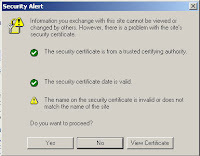
To remove ad.yieldmanager.com cookie with Internet Explorer 6, 5, 5.01, and 5.5 for Windows 95, Windows 98, Windows NT 4.0 and Windows 2000, follow the manual removal steps below:
1. Start Internet Explorer.
2. Go to Tools > Internet Options > General tab.
3. In the Temporary Internet Files, select Settings > View Files.
4. On the View, select Details.
5. Click the Internet Address column header, and search for the Internet addresses of the cookie file(s) below:
6. Right-click on the ad.yieldmanager.com cookie file, and then press Delete. If you are prompted to confirm that you wish to delete the ad.yieldmanager.com cookie file, click Yes. You can repeat this step for each cookie file you want to remove.