
Security concerns, including viruses, denial of service attacks, and spyware/malware, have made firewalls (both software and hardware) a critical part of having an internet connection today. Without testing it, how do you know that your firewall is doing its job? We will look at how to test your firewall.
Step 1 : If you have a firewall, hardware, software, or both, make sure that it is enabled.
Step 2 : Find a computer security test site. I use ShieldsUP! from grc.com and the QuickTest from PCFlank.com. Run the test and review the results.
Step 3 : The first results to review are the ports shielding or stealthing. This tests to see if the ports (different doors) to your computer's address are visible from the internet. Having them hidden, prevents your computer from being "found" by a computer or person that wants to take control of it.
If there are ports that are not hidden, but should be according to the test tool, then refer to the documentation for your hardware firewall (usually part of a router) or software firewall. Look for the section on port rules.
Add rules to hide the ports that should be, but aren't.
Step 4 : Test your new rules with the security test tool to make sure that the rules worked correctly and hid the ports. Also test to make sure that your internet connection still works correctly.
Step 5 : Another test run by these tools is to attempt to get information about your browser (e.g.- Internet Explorer or FireFox). If the test results show that you have a problem, refer to the documentation for your software firewall. Look for information on privacy.
Add or modify the rules to hide your browser information.
Step 6 : Again, retest with your new rules in place to ensure that they are working correctly and hiding your browser information. Also, make sure that you can still browse correctly.
Step 7 : Feel just a little bit safer when browsing the internet.
Showing posts with label antivirus security. Show all posts
Showing posts with label antivirus security. Show all posts
Thursday, August 20, 2009
Test your Computer Securit

Monday, August 17, 2009
How can I remove adyieldmanager from my pc
This is server based adware/spyware.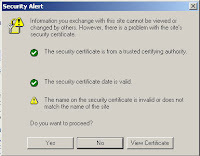
To remove ad.yieldmanager.com cookie with Internet Explorer 6, 5, 5.01, and 5.5 for Windows 95, Windows 98, Windows NT 4.0 and Windows 2000, follow the manual removal steps below:
1. Start Internet Explorer.
2. Go to Tools > Internet Options > General tab.
3. In the Temporary Internet Files, select Settings > View Files.
4. On the View, select Details.
5. Click the Internet Address column header, and search for the Internet addresses of the cookie file(s) below:
6. Right-click on the ad.yieldmanager.com cookie file, and then press Delete. If you are prompted to confirm that you wish to delete the ad.yieldmanager.com cookie file, click Yes. You can repeat this step for each cookie file you want to remove.
Subscribe to:
Posts (Atom)